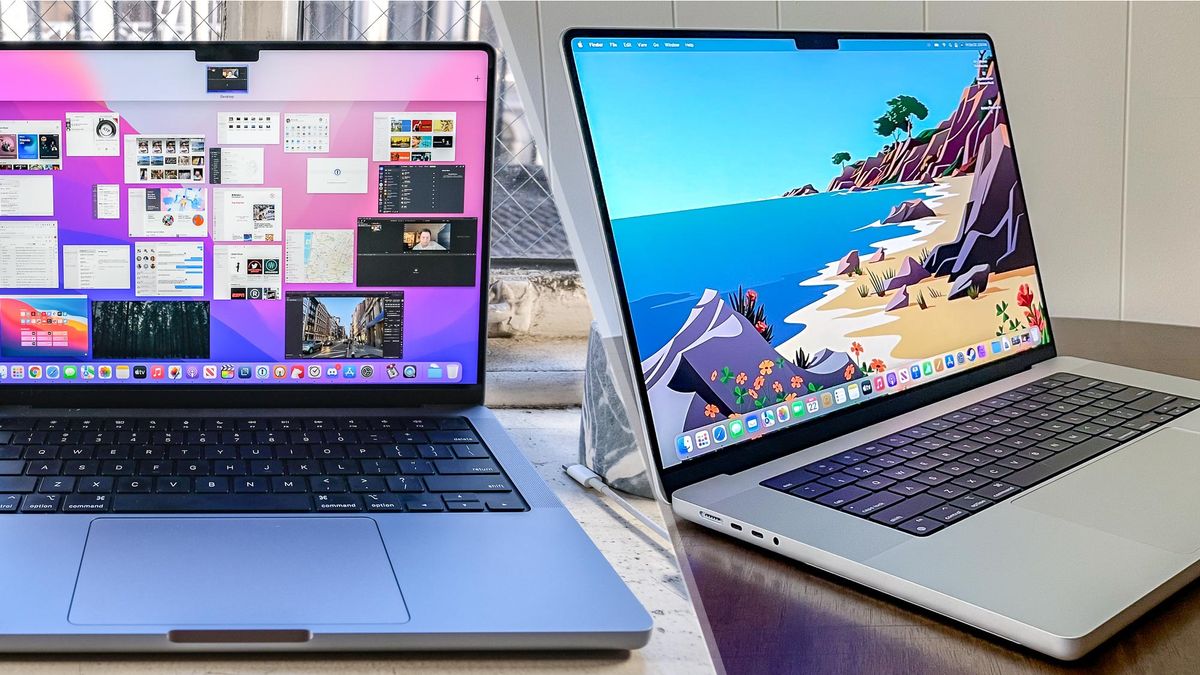
If you recently purchased a brand-new MacBook, congratulations! However, before getting started with your work and leisure activities, take some time to set up your privacy settings.
In fact, with the right settings in place, you’ll feel more relaxed knowing your personal data is protected. So let’s create a convenient checklist and secure your MacBook from the beginning.
Steps to Setting Up Your Mac Privately and Securely
To ensure your new laptop is set up with the best privacy and security practices, follow these steps:
1. Sign in to Apple ID & Enable 2FA
Your Apple ID will be required for the download of new apps and synchronization of your data between different devices. To log into your Apple ID, visit https://appleid.apple.com/. Also, make sure that two-factor authentication is turned on.
The procedure requires signing in with your password and entering a unique code sent to your phone or computer. It means that, even if someone gets access to your account, they still won’t be able to log in without your code.
2. Enable FileVault
The second thing you have to do after turning your Mac on for the first time is to set up encryption on your computer’s disk. To do that, you should open the Settings window, Open System Settings, click Privacy & Security in the sidebar, scroll down to FileVault, and click “Turn On FileVault.” It’ll ensure your information is secure and that no one can read it if your Mac is stolen or lost.
3. Adjust App Privacy Settings
macOS provides you with a number of privacy settings. These include camera and microphone permissions, the ability to access your contacts and location, and more. You can check whether or not any of the apps require accessing your personal information.
All you need to do is open the Settings panel, then go to Security & Privacy > Privacy.
4. Limit Location Services
Most apps use location services in order to provide you with a better user experience. But some of them, especially social media apps, don’t really require this feature. Anyone needs to limit their use to reduce their risk of privacy breaches.
Open System Settings, click Privacy & Security, then select Location Services, and disable access for certain applications or turn off the option altogether.
5. Online Security and Privacy
To increase the level of security and privacy when browsing and installing software, avoid using suspicious apps or visiting questionable websites. Don’t disclose your personal information online and change app permissions. Safeguarding your devices with additional protection is essential, especially after Apple’s CVE-2026-20700 zero-day incident.
One of the most efficient ways to ensure your protection online is by using the best VPN for Mac and an antivirus. These apps help hide your IP address and encrypt your traffic, adding an extra layer of privacy while you browse.
6. Restrict App Permissions
There’s no need to allow every single application to use all your files and resources. For example, you certainly don’t need to give contacts or calendar permission to access your camera or microphone.
The easiest way to control which permissions each app has is to open the Settings panel > Security & Privacy > Privacy and delete the permissions that you don’t need.
7. Disable Siri and Dictation
Siri is a very convenient feature, but always being active could affect your privacy negatively. If this is something you care about, there’s a chance to disable Siri by opening System Settings, going to Apple Intelligence & Siri, and disabling Siri from there. At the same time, you should also turn off dictation. Do this by opening the Keyboard preference in Settings.
8. Enable Automatic Software Update
As you probably know, there could be different vulnerabilities in the system that can potentially put your MacBook under threat. Therefore, it’s crucial to stay on top of new updates released by the developers.
You can activate automatic software updates by going to the Settings panel, selecting Software Update, and checking the appropriate checkbox.
9. Configure Privacy Options in Safari
If you choose Safari as your web browser, it’s a good idea to adjust a few privacy settings. To do that, you need to open Safari, go to Safari > Settings > Privacy. From this point on, you’ll be able to manage cookies and website data, cross-site tracking options, as well as other privacy settings.
10. Change and Update Your Passwords
Last but not least, it’s recommended to create strong passwords for all your accounts and use them to log into your Apple ID, email accounts, and other apps.
To increase security, consider using the iCloud Keychain function on your built-in Mac function to generate unique passwords. Another great choice would be using a password manager.
Conclusion
These simple actions will help you set up your new MacBook with the right privacy and security settings. It doesn’t take much time, but the peace of mind you get from knowing your information is protected is well worth the effort.